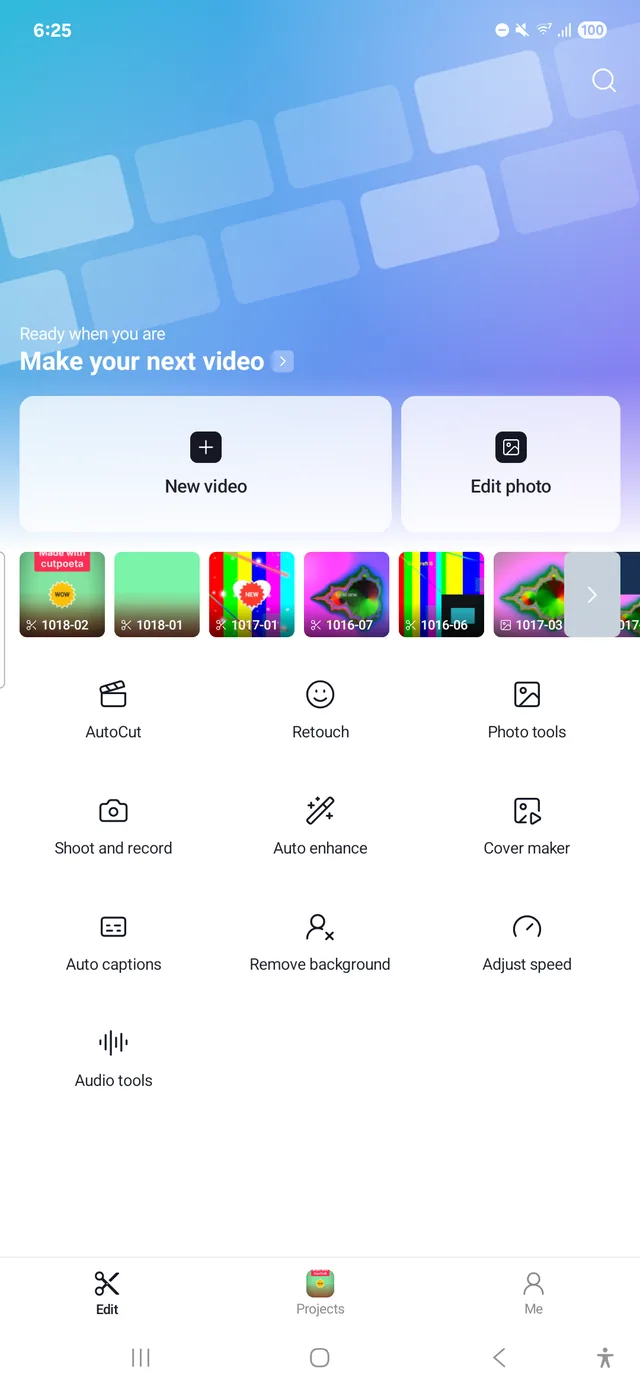
You need a phone running Android 10 or later with cutpoeta installed. The install guide explains how, once the first release is out.
The example is a short video made from a few clips on the phone, a title and a sound effect. Button names in “quotes” are as they appear in the app.
Updated 20 October 2026
Create a project and import your clips
On the home screen, tap “New video”. Your gallery opens: pick the videos and photos you want, in the order they should play, and tap “Add”.
cutpoeta saves the project automatically as you edit. You’ll find it later under “Projects” on the home screen.
Trim, split and arrange the clips
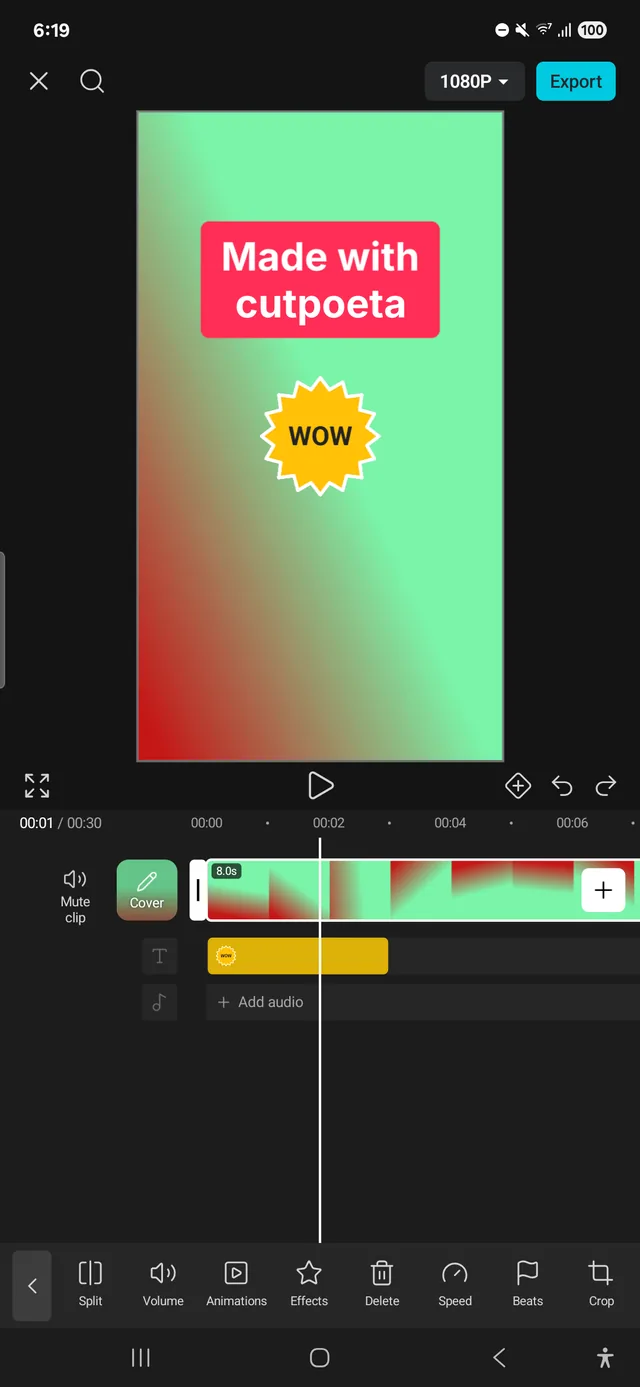
Tap a clip on the timeline to select it. Drag the handles at either end to cut what you don’t need from the start or the end; its length shows as you adjust it.
To cut a clip in two, put the playhead where you want the cut and tap “Split”. With the clip selected you also have “Delete”, “Duplicate”, “Replace”, “Speed”, “Volume” and “Crop”, which changes the framing. Pinch the timeline to zoom in or out, and undo any step if you make a mistake.
At the cut between two clips you can add a transition. They’re all on filters, effects and transitions.
Add a title
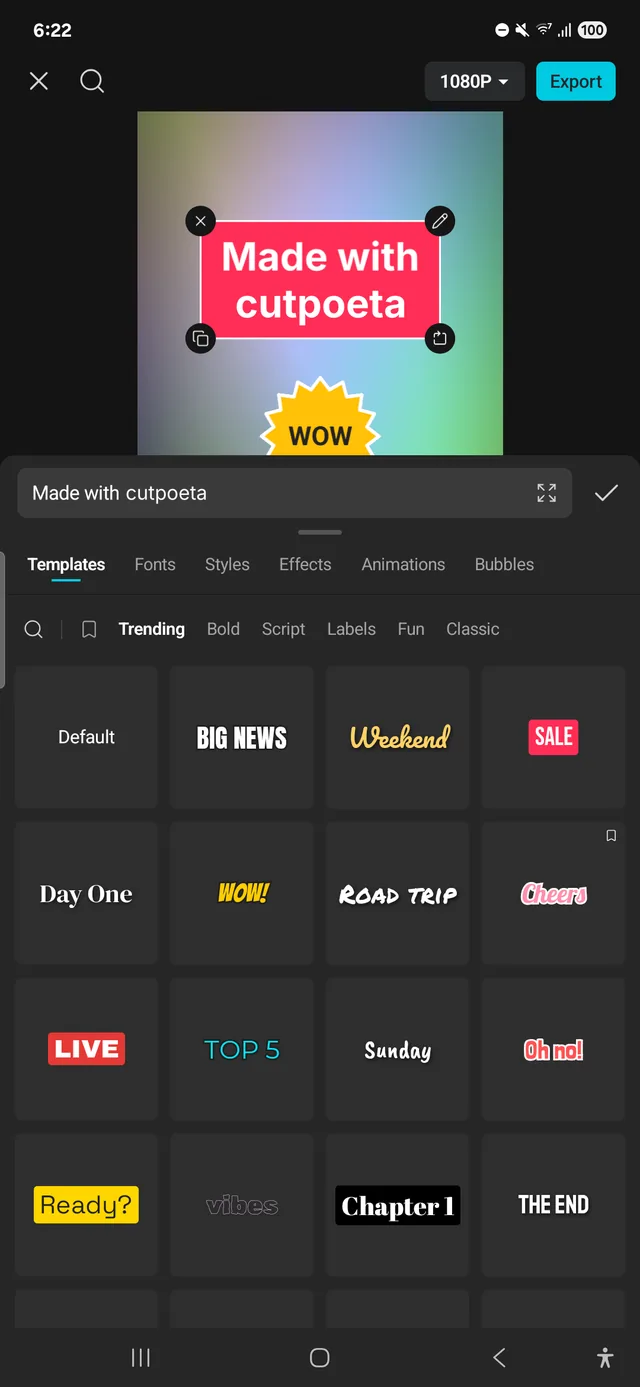
Tap “Text” in the toolbar, then “Add text”. Type your title and choose its look in the “Templates”, “Fonts”, “Styles”, “Effects”, “Animations” and “Bubbles” tabs.
The text gets its own row on the timeline, and you move and shorten it like a clip to decide when it shows and for how long. “Stickers” work the same way.
Add sound
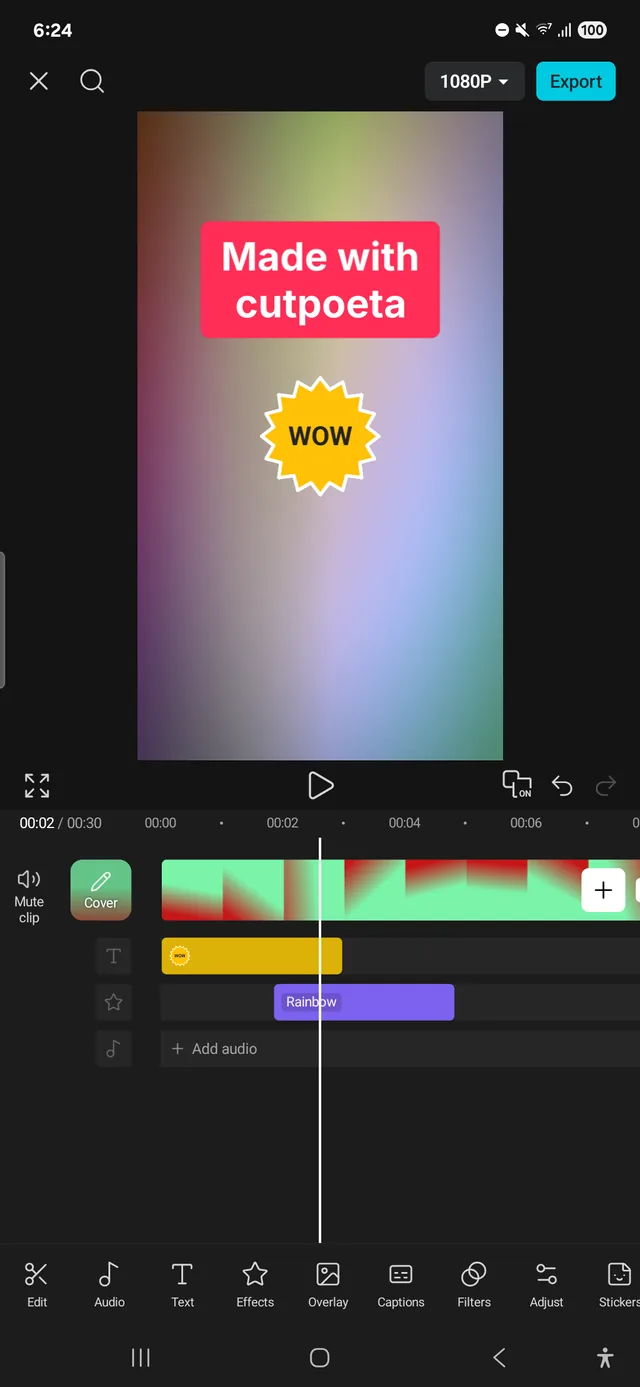
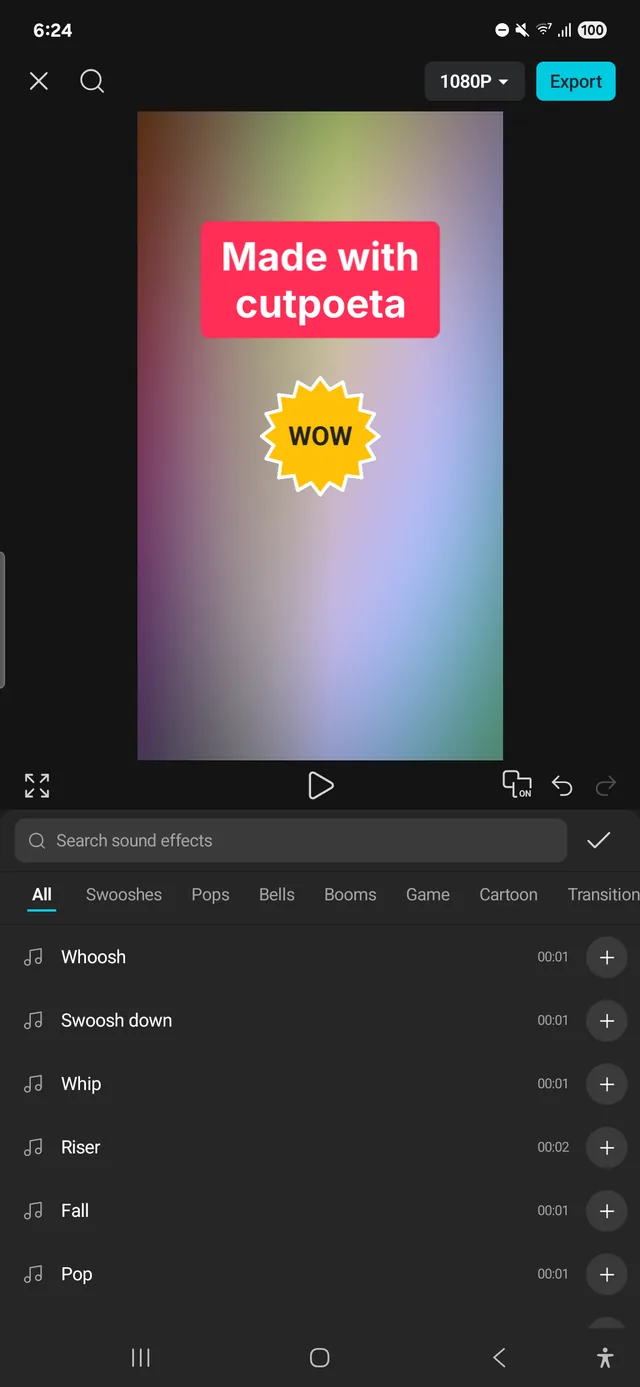
Tap “Audio” in the toolbar. “Sound FX” has sounds in categories such as Swooshes, Pops and Transitions: tap one to hear it and add it to the project. You can also record your voice over the video, or take a clip’s sound out with “Extract audio”.
To balance the mix, select a clip or a sound and use “Volume”; “Fade” smooths the start and the end. If people speak in the video, add auto captions.
Export and share
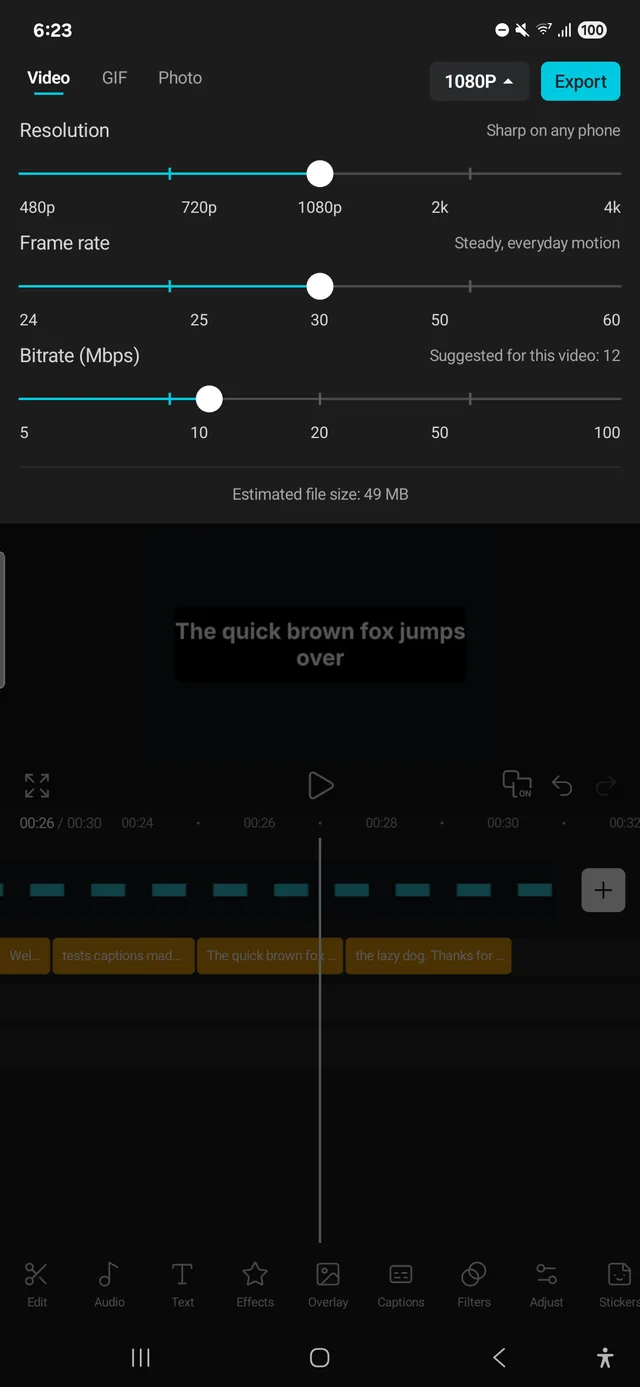
Tap “Export” in the top right. On the “Video” tab choose the “Resolution” (480p, 720p, 1080p, 2K or 4K) and the “Frame rate” (24, 25, 30, 50 or 60 fps). The “Bitrate (Mbps)” comes with a value suggested for your video, and the app shows the estimated file size before you save.
The video is saved on your phone as an MP4 with no watermark, and when it’s done “Share” and “Open” appear. The export keeps going if you leave the app. The “GIF” tab saves a looping animation without sound. More in video editor with no watermark.
Keep going
Start editing for free
No subscription, no watermark, no account.